

USB Device Not Recognized? Troubleshooting USB Extenders and KVM Systems
A USB device may work normally when connected directly to a computer but stop working after a USB extender or KVM system is added.

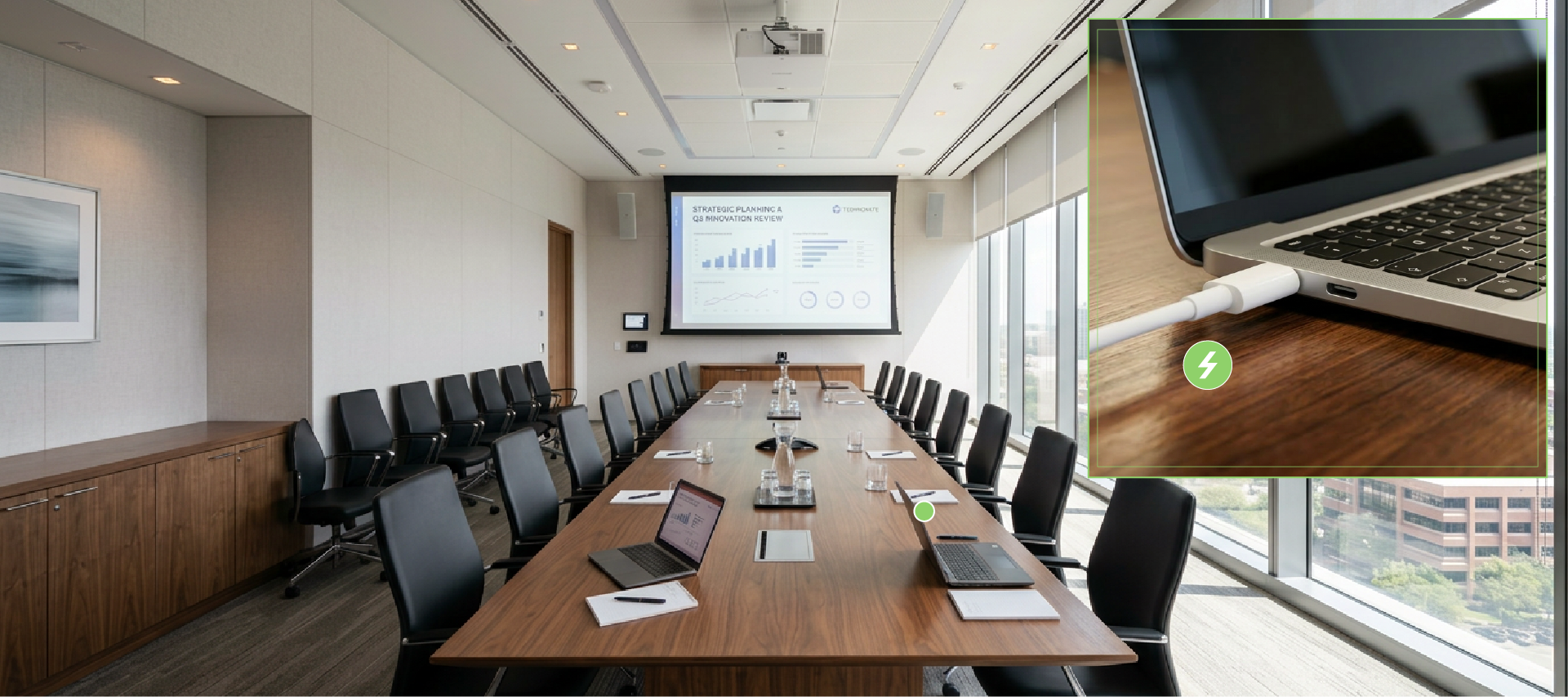
In modern meeting rooms, users constantly bring their own laptops for presentations, video conferences, or collaborative discussions. This Bring Your Own Device (BYOD) setup means AV systems can no longer just support a single video input. Instead, you have to plan for a mix of different laptops, varying connection interfaces, and the critical need for reliable power during long presentations.
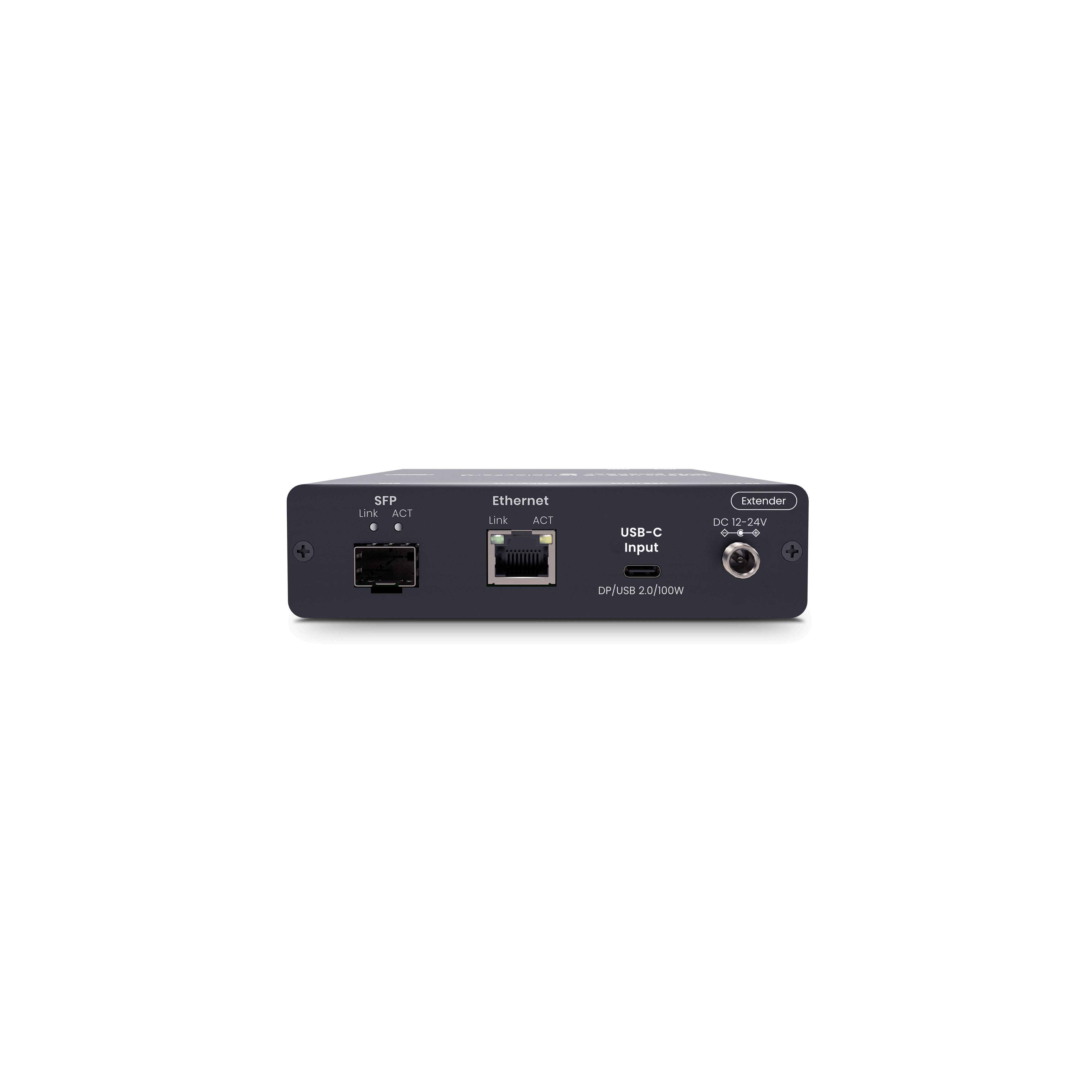
USB-C Power Delivery (USB-PD) has quickly become a must-have feature in meeting room presentation systems. When combined with DisplayPort Alt Mode and USB Data, USB-C PD can support a one-cable experience for charging, video output, and peripheral connectivity. Removing external power supplies and adapters reduces failure points, ensuring an intuitive workflow and stable system performance.
For BYOD meeting rooms and system integration projects, understanding how USB-PD works—and its limits—helps you define project requirements clearly. This ensures you avoid choosing the wrong interface or underestimating on-site power needs.
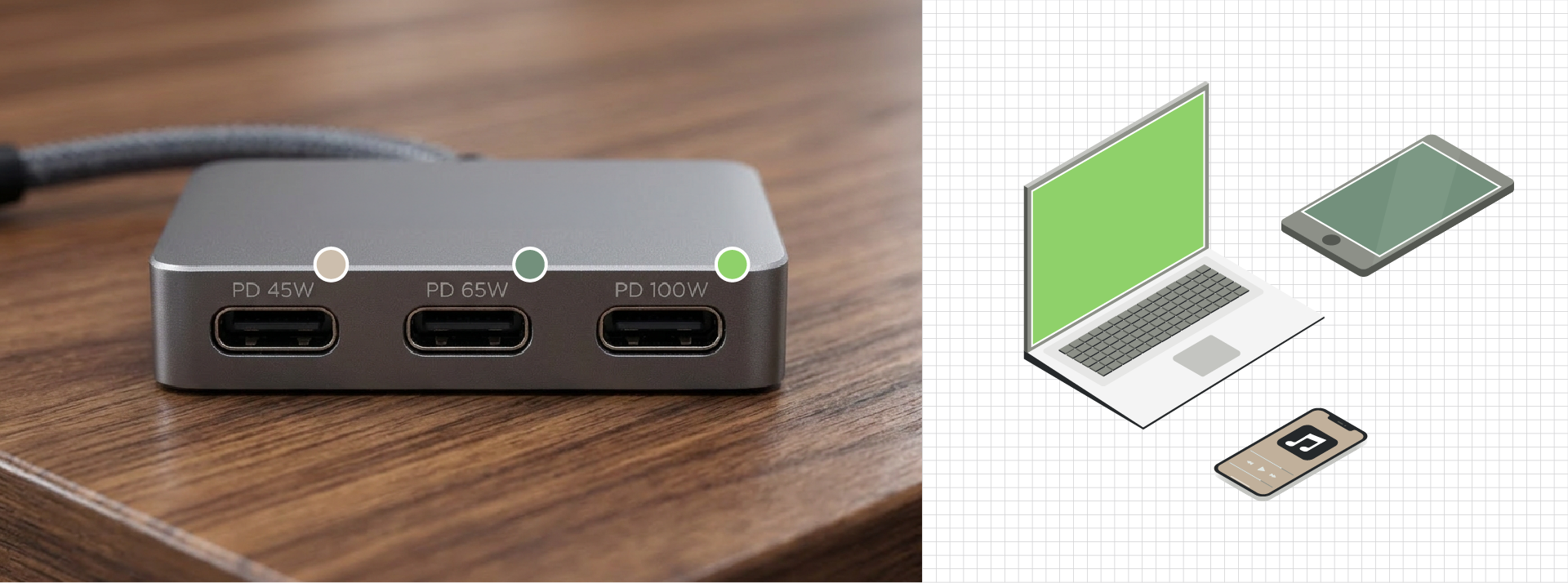
USB Power Delivery (USB-PD) is a fast-charging standard that transmits high-wattage power through a USB-C interface. Originally introduced by the USB-IF, the widely used USB PD 3.0 protocol utilizes the Type-C connector to deliver flexible, high-power output capable of driving demanding hardware.
Traditional USB standards had strict power limits, operating at low voltages and currents that couldn't charge larger devices like laptops. USB-PD solves this bottleneck, allowing hardware to draw higher, negotiated power over a single USB-C cable.
In BYOD meeting rooms, the true value of USB-PD is allowing installers to deliver a seamless single-cable solution that simultaneously handles:
Quick Rule of Thumb: Every USB-PD setup uses a USB-C interface, but not every USB-C interface supports USB-PD.
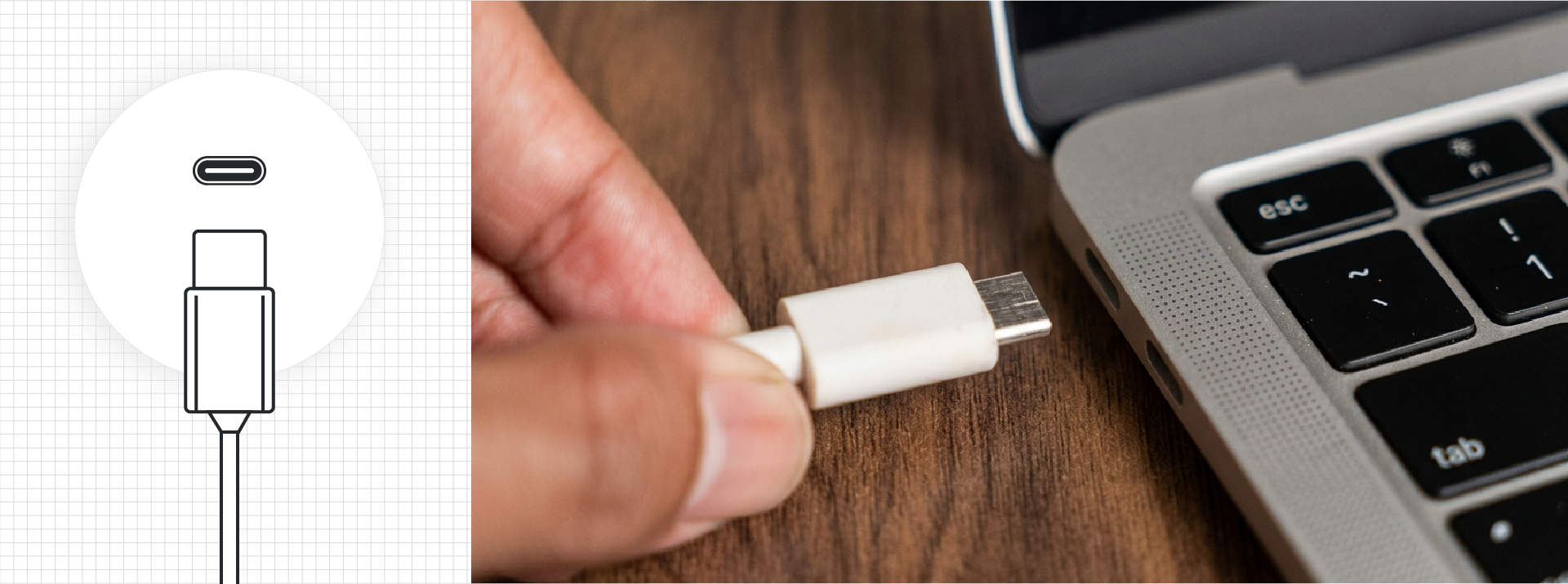
USB-C is the physical connector, while USB-PD is the charging protocol. They are two different things, but they work together in modern hardware.
Simply put: USB-C ensures it plugs in; USB-PD decides how much power to deliver safely. When selecting gear to power a laptop over USB-C, always double-check the spec sheet for explicit mentions of USB Power Delivery, USB-C PD, or the specific PD wattage.
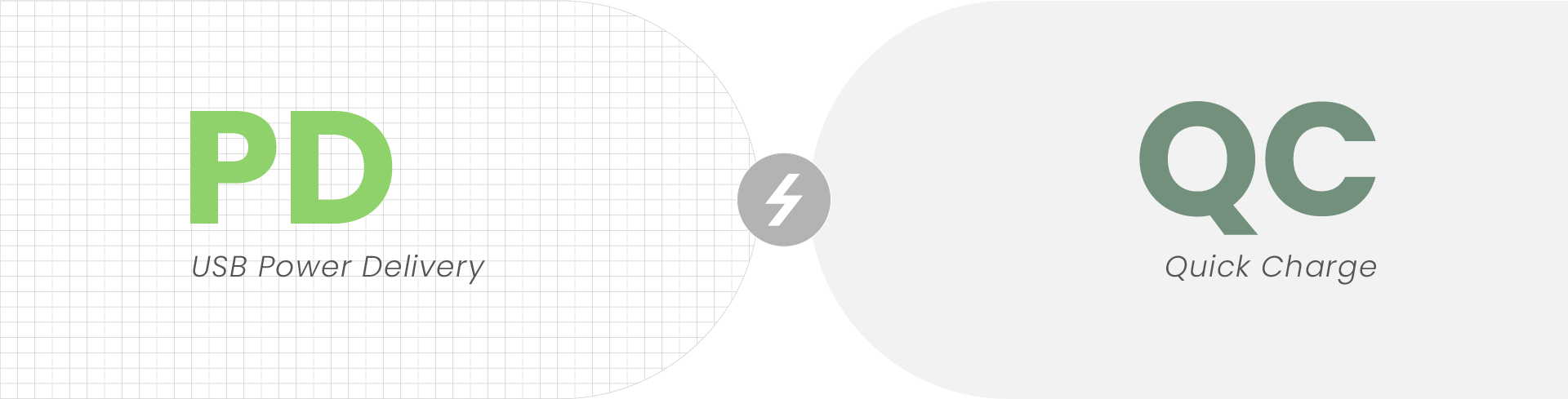
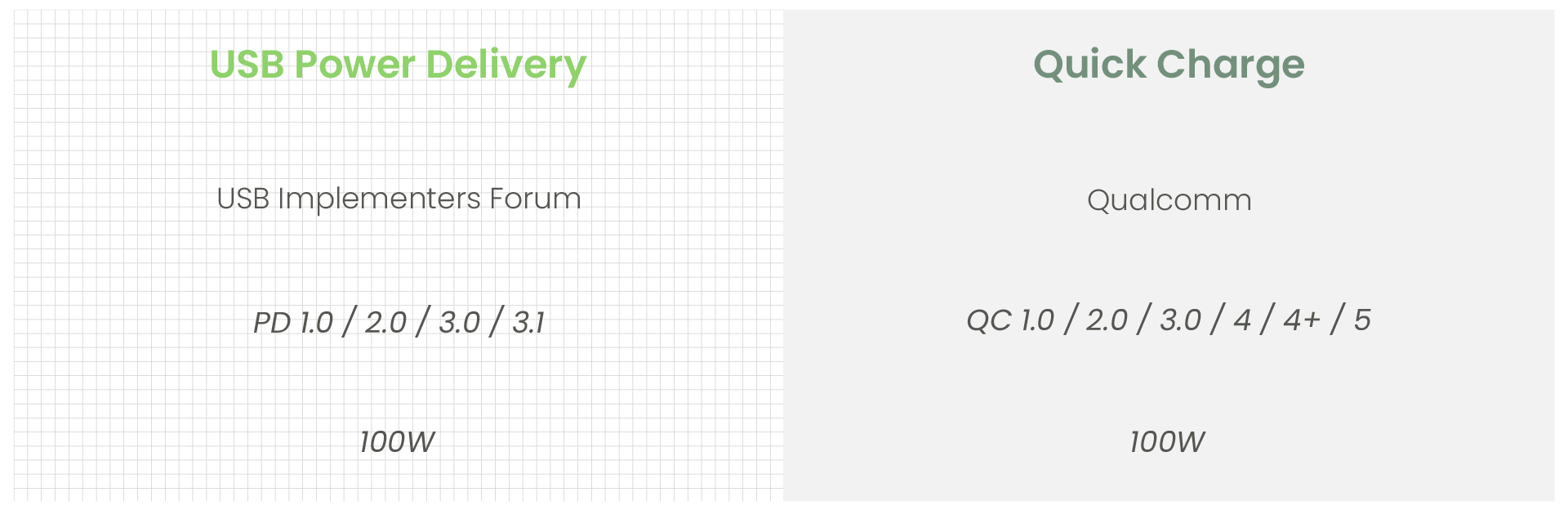
While both are fast-charging technologies, they run on completely different protocols.
Some chargers support multiple fast-charging formats, but for stable laptop power in BYOD meeting rooms, always prioritize USB-PD compatibility over Quick Charge specs.
When choosing USB-PD equipment, you can't just look at whether it has a USB-C port—you need to verify which features it actually supports.
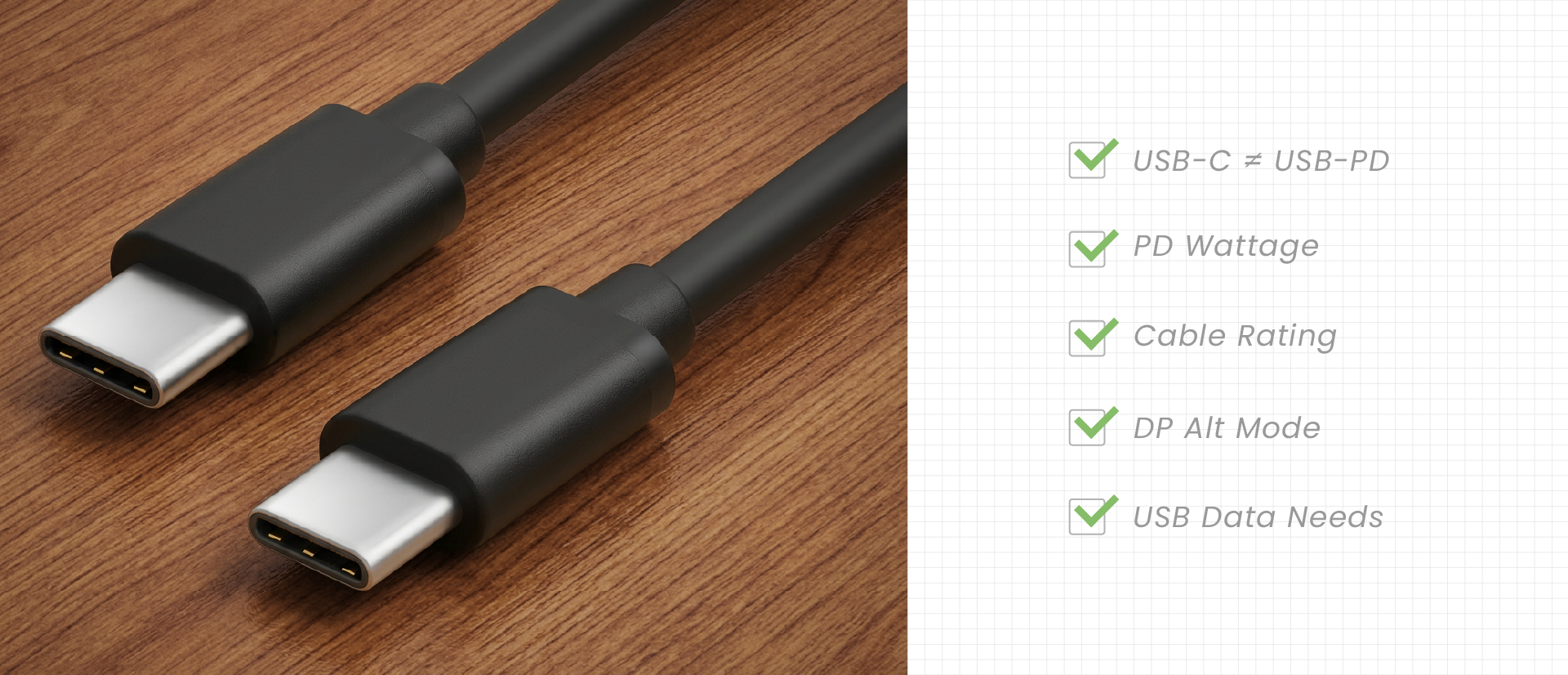
USB-C is just the connector shape; USB-PD is the actual charging protocol.
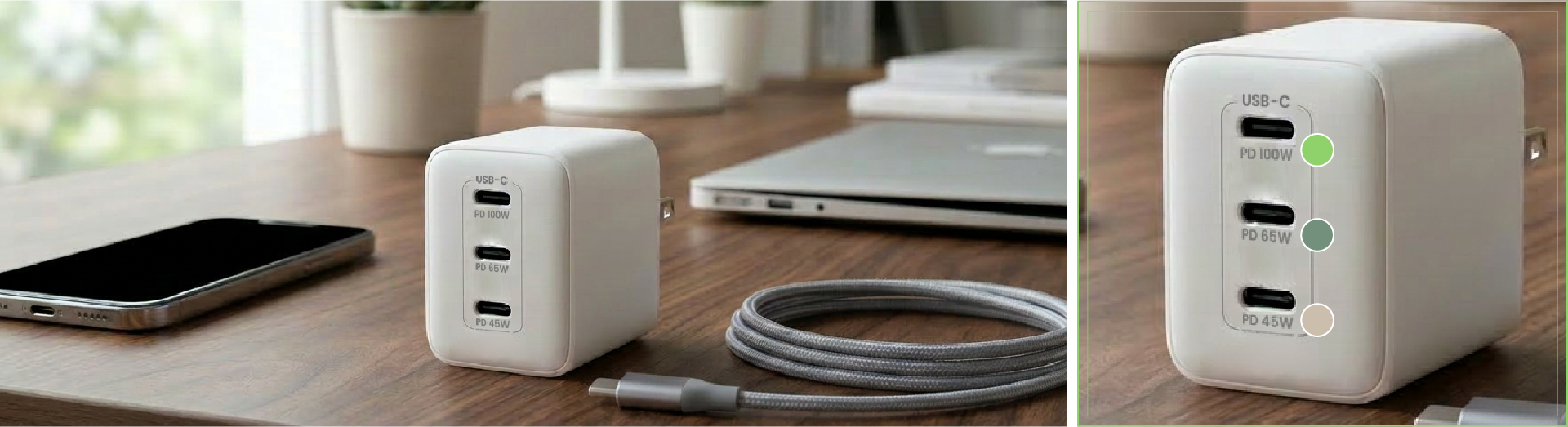
If a device's spec sheet doesn't explicitly state "PD" or list a specific "charging wattage" you should never assume it can power or charge a laptop. Always look past the physical Type-C port and verify the actual protocols under the hood to avoid on-site surprises.
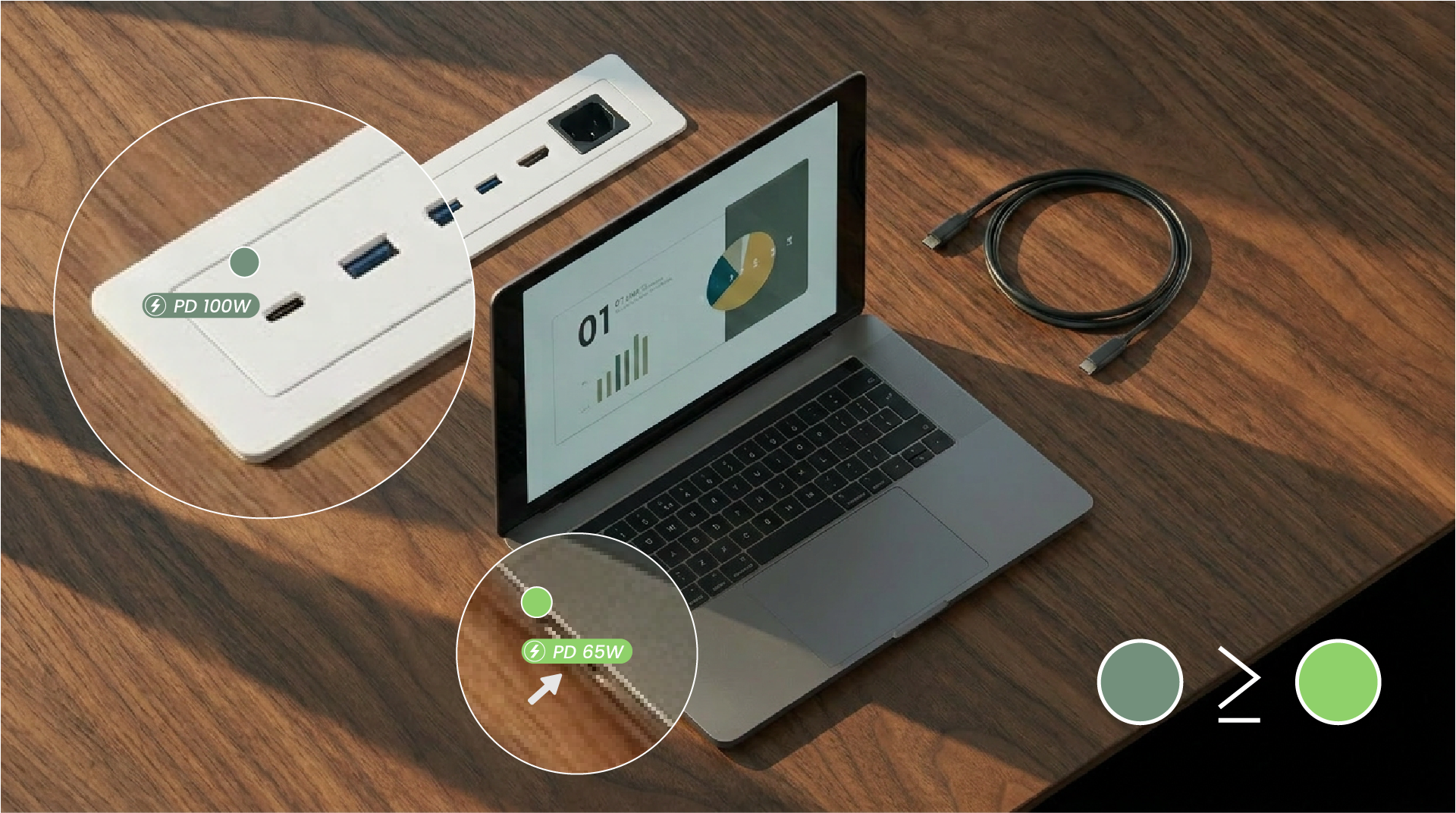
If a laptop's original factory power brick is rated for 65W, it is highly recommended that the meeting room equipment’s USB-PD output supports at least 65W or higher. If the provided wattage falls below the laptop’s requirements, it might still supply some power. However, it won't reliably maintain charging efficiency during long presentations or high-workload usage.
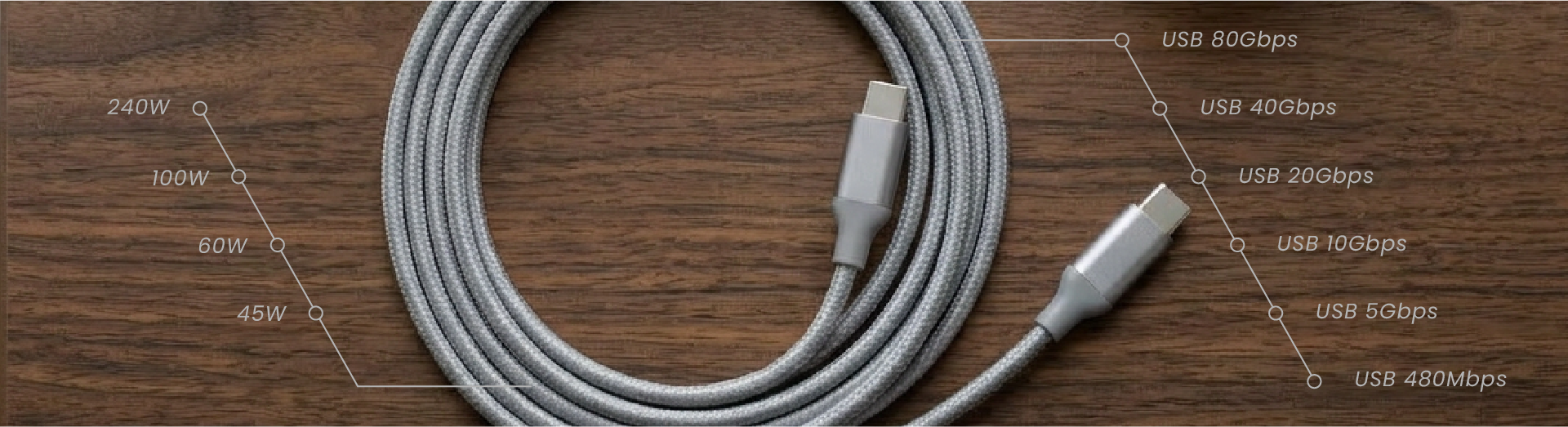
High-wattage USB-PD applications demand premium USB-C cables rated to handle the corresponding power load. This ensures absolute power stability and on-site electrical safety. When planning a meeting room or system integration project, cables should never be treated as just an afterthought or a simple accessory—they are a critical component directly affecting overall system stability.

USB-PD handles the power, while DisplayPort Alt Mode (DP Alt Mode) handles the video output—they are two completely separate functions.
If your USB-C port needs to run presentations, you must verify that it explicitly supports DP Alt Mode. Otherwise, even if the USB-C port successfully charges the laptop, it still won't be able to output the user's screen to the meeting room display.
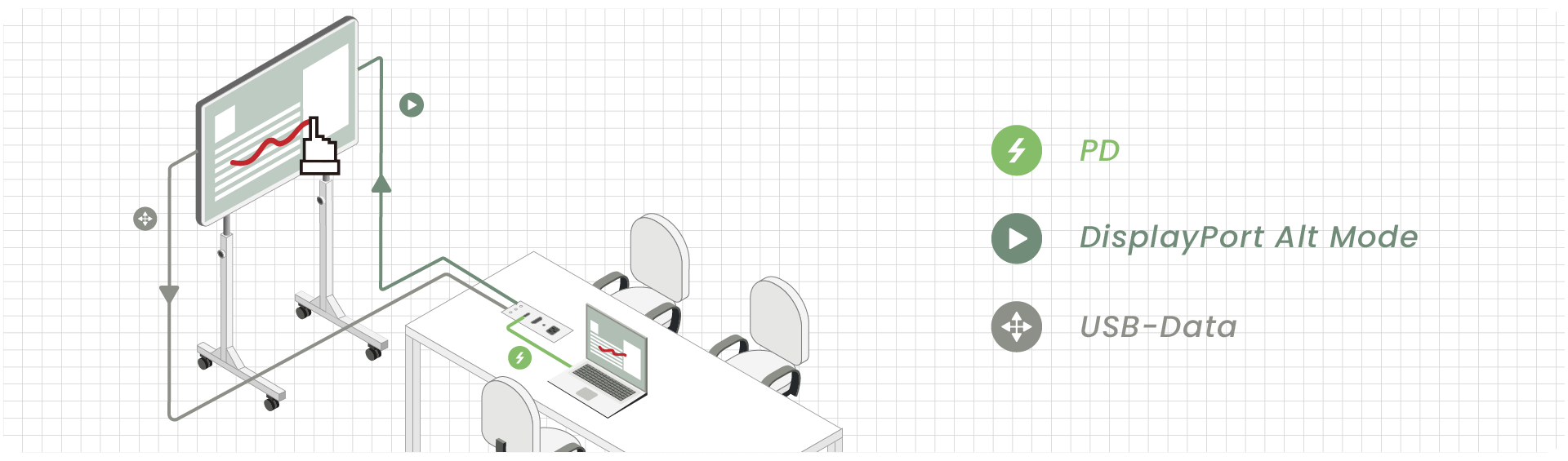
In real-world integration projects, USB-PD is rarely just about charging a battery. Most applications require a single port to simultaneously handle power, USB data, video output, and interactive touch controls. Because of this, you must analyze the complete user scenario to verify if the USB-C port is up to the task.

Read more: USB-C is engineered for total convenience. Its symmetrical, reversible design means installers and end-users never have to fumble around checking which side is right side up.
In real-world system integration, USB-PD works alongside a suite of USB-C and AV capabilities. Depending on your room layout, look for these specific feature combinations:
Run a presentation and charge via one cable.

Utilize the room's camera and mic while outputting video.
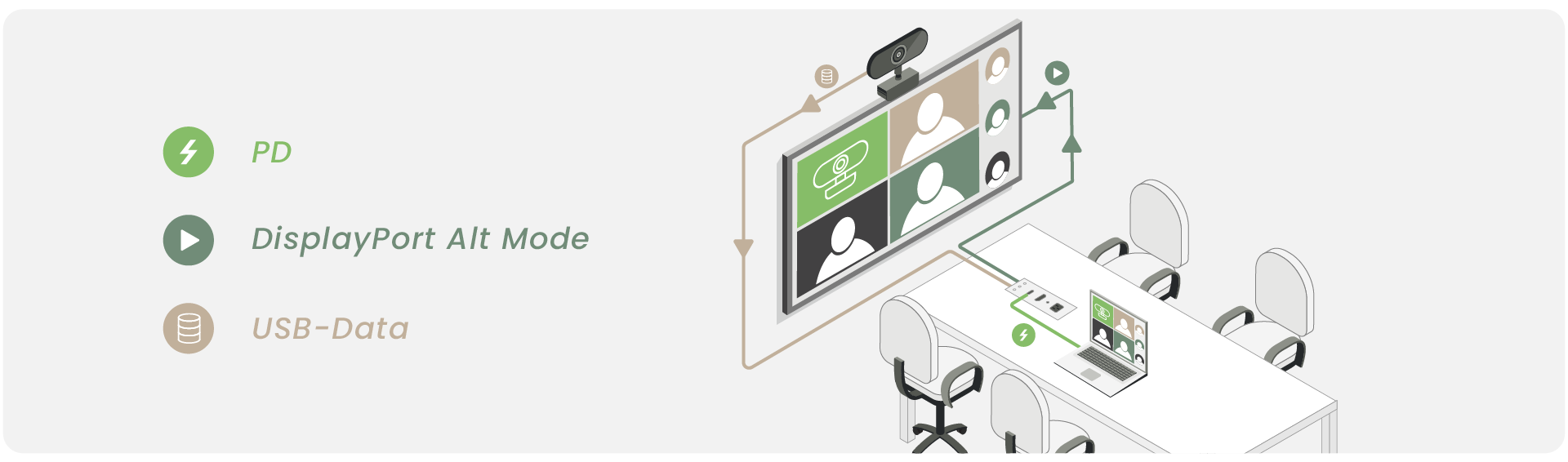
Output the laptop screen and enable touchback control.
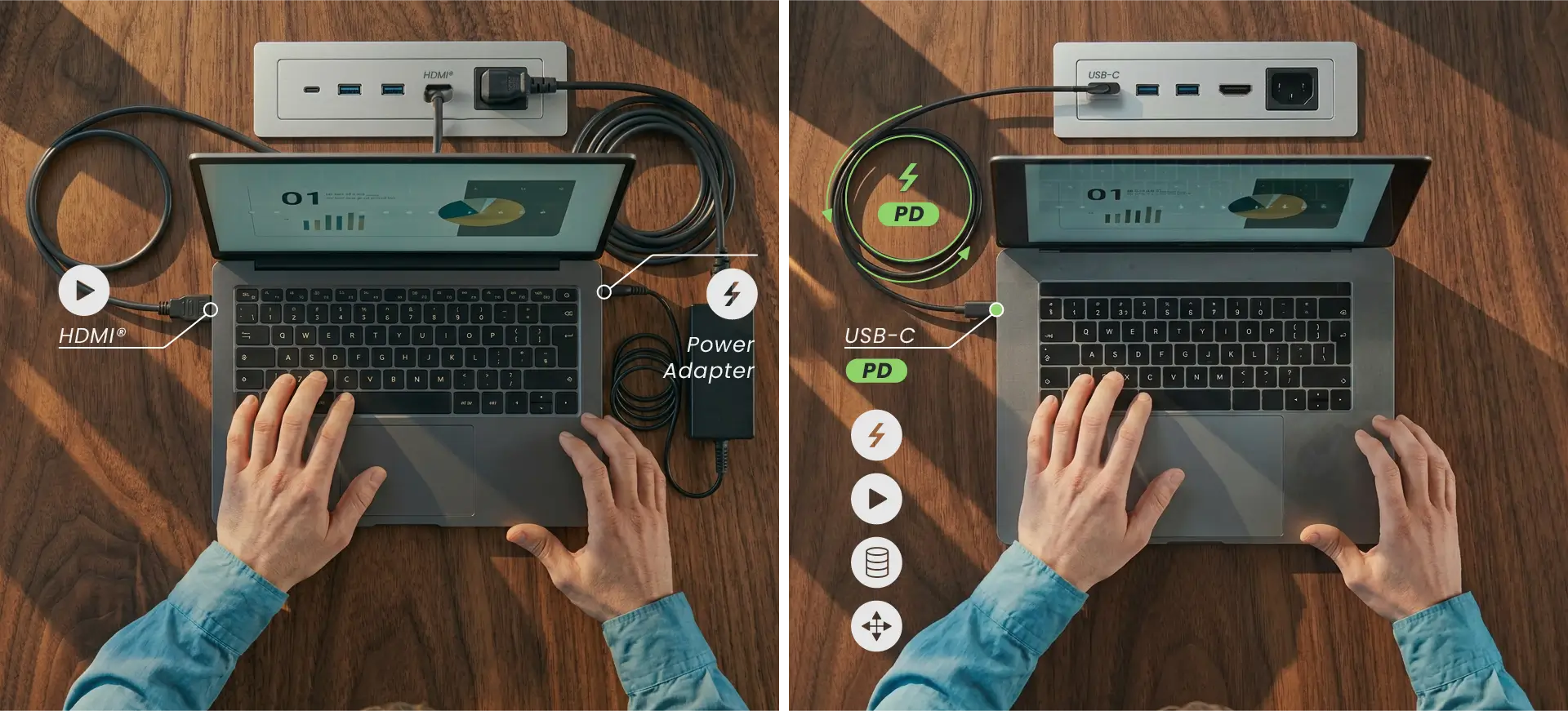
USB-C / HDMI® switching with cleaner tabletop cabling.
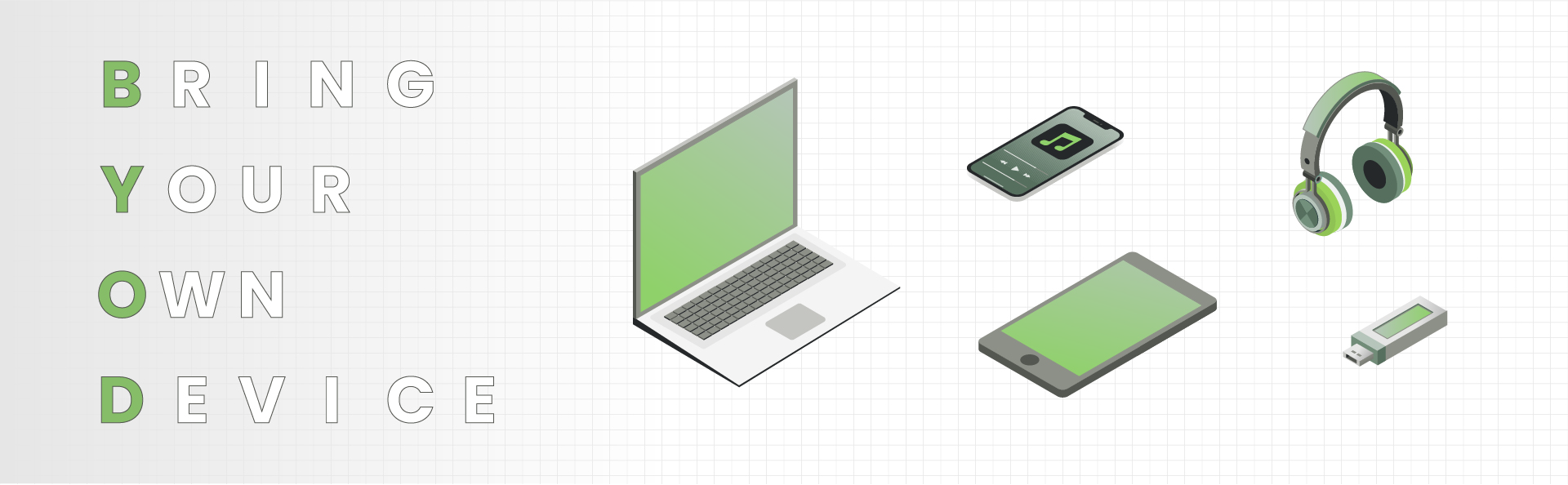
BYOD stands for Bring Your Own Device. It refers to an environment where team members or guests bring their own laptops or tablets into a meeting room to lead presentations, run video calls, or conduct collaborative training.
It offers massive flexibility. Users work on their own familiar machines with all their files ready to go, removing the need to manage a dedicated room PC.
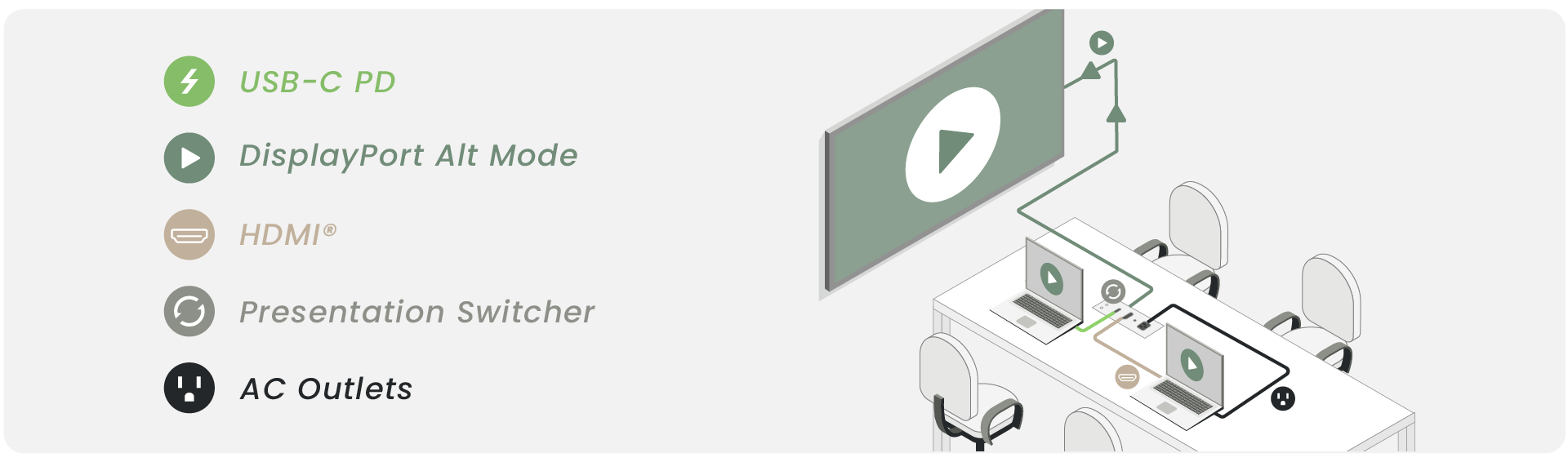
Because users bring highly diverse devices, the AV system must handle a wide mix of connection standards. Proper room planning means going beyond offering a basic video port; you must ensure fast, stable connectivity for everyone. This is why modern system designs frequently combine USB-C PD, DisplayPort Alt Mode, USB Data, and legacy HDMI® into a unified ecosystem.
For enterprises, schools, and system integrators, the value of USB-PD goes far beyond simple charging. It directly streamlines the entire meeting room workflow. End-users do not need to understand complex technical details; they just plug in a single USB-C cable and start presenting immediately. This is especially critical for modern, ultra-thin laptops that feature only a single USB-C port for all functions.
USB-PD directly solves these common on-site frustrations:
Therefore, in a BYOD meeting room, USB-PD is not just a charging feature—it is a critical design element that elevates the user experience and ensures system stability.
While USB-C PD drastically improves convenience for modern laptops, a reliable BYOD meeting room cannot rely solely on USB-C. Different users will bring different laptops, video sources, or peripherals, making interface compatibility a top priority:
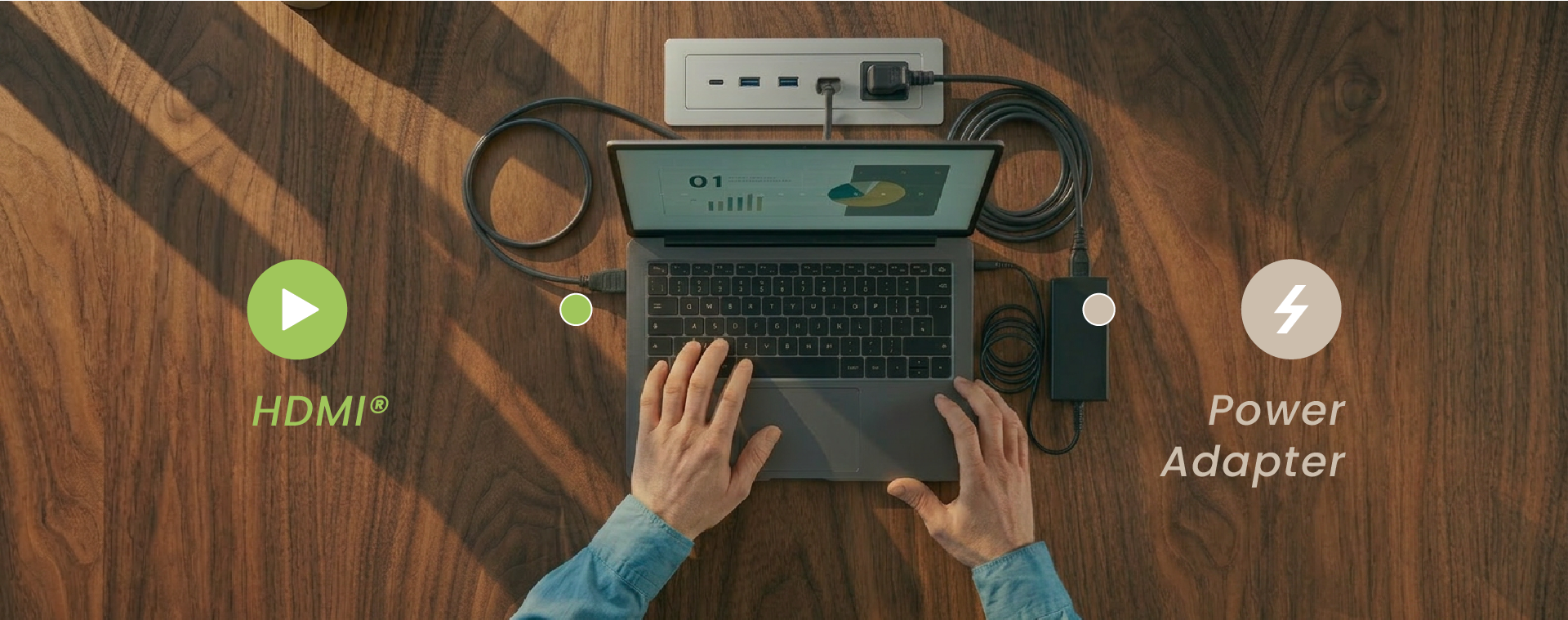
Generally speaking, no. HDMI® provides only a minimal 5V driver current. HDMI® is fundamentally an audio-visual transmission interface designed to push video and audio from a laptop or media source to a display or presentation system. It is not built for power delivery and cannot charge a laptop over a single cable like USB-C PD does.
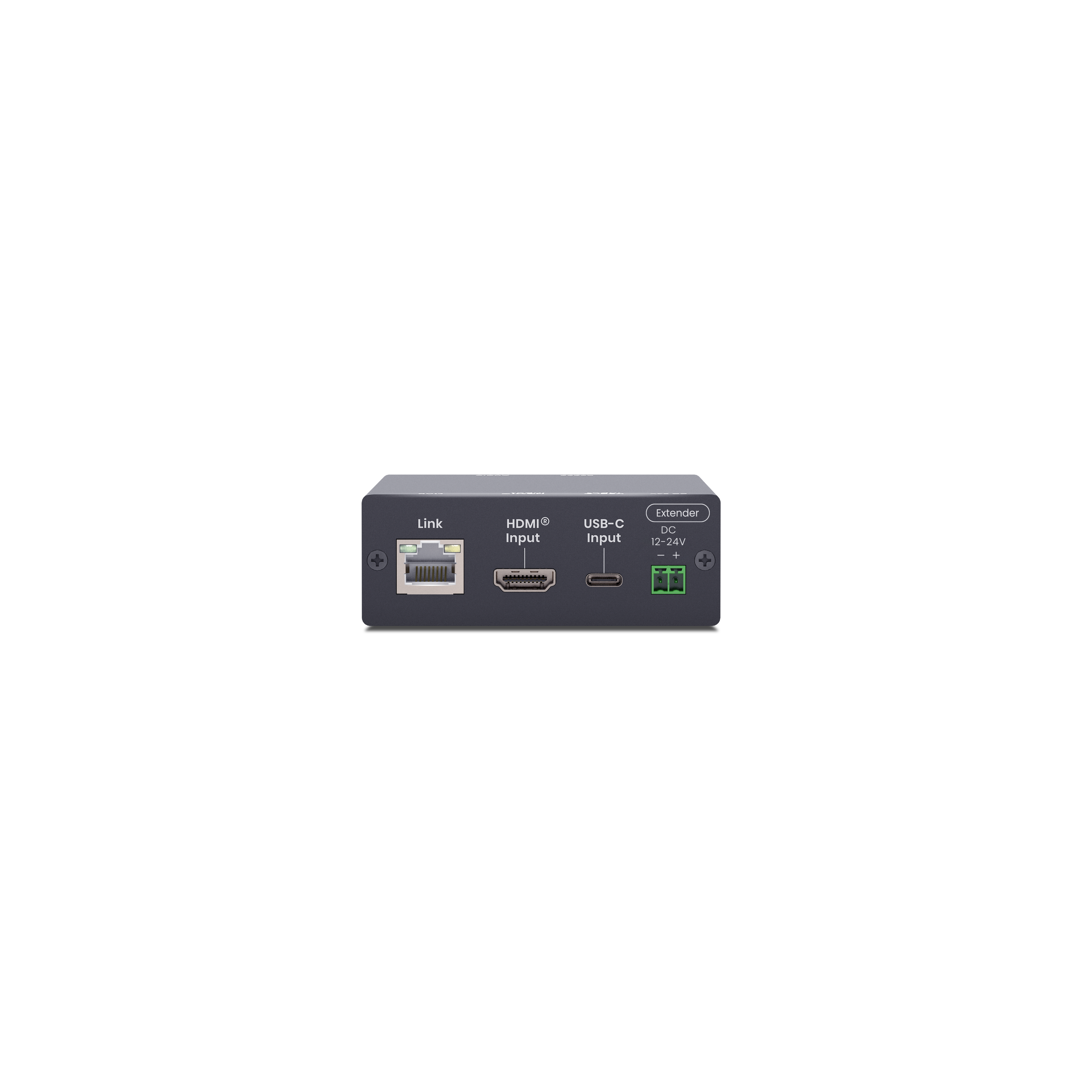
This is exactly why a hybrid USB-C + HDMI® input system is vital for reliable BYOD spaces. The USB-C port serves modern laptops by handling video and high-power PD charging, while the HDMI® port retains backward compatibility with legacy laptops and existing media players. They handle power differently, so you need to plan for them separately during system design.
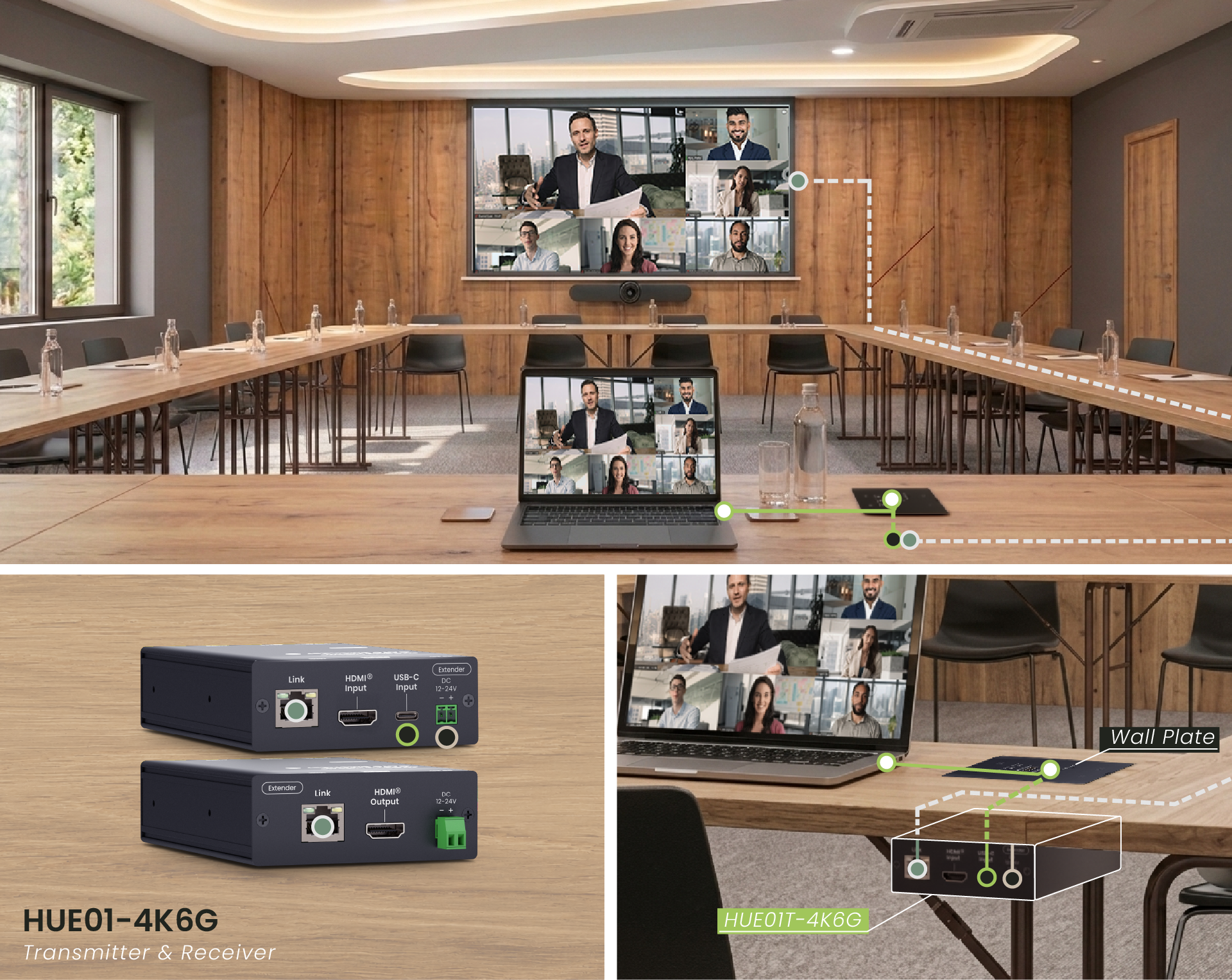
Combining USB-C and HDMI® inputs allows your meeting room to support different generations of presentation hardware simultaneously, maximizing compatibility and reducing the user's reliance on external dongles or adapters.
When a meeting room provides both USB-C and HDMI® options, users do not have to struggle with bringing the right adapter, which significantly cuts down on connectivity failures on-site. For fast-paced environments like multi-user presentations, guest meetings, or shared huddle spaces, this setup keeps the meeting flowing smoothly and makes the entire system much easier for IT teams to maintain.
When planning a BYOD meeting room project, we highly recommend designing around actual user workflows rather than just counting the number of inputs on a specification sheet.
Run through this practical checklist to align your project requirements with the right hardware specs:
Always keep in mind that seeing a physical USB-C port does not automatically mean it supports video output or USB-PD charging. When selecting your hardware, always verify the actual performance capabilities of that USB-C port rather than judging it by its appearance.
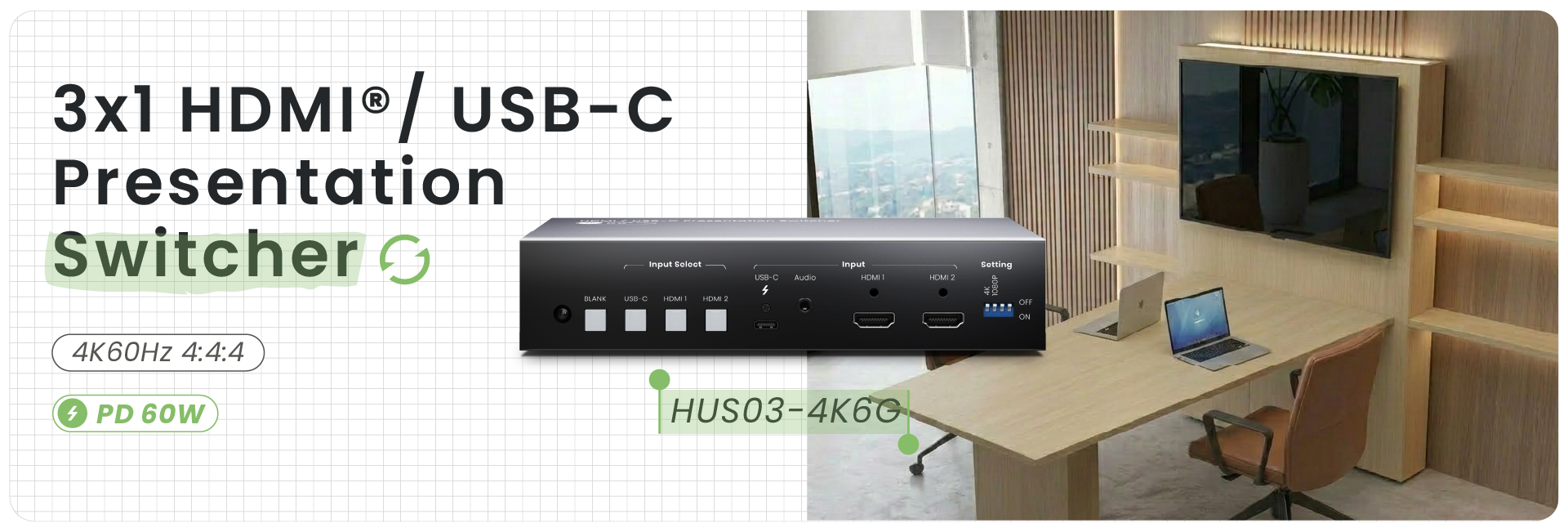
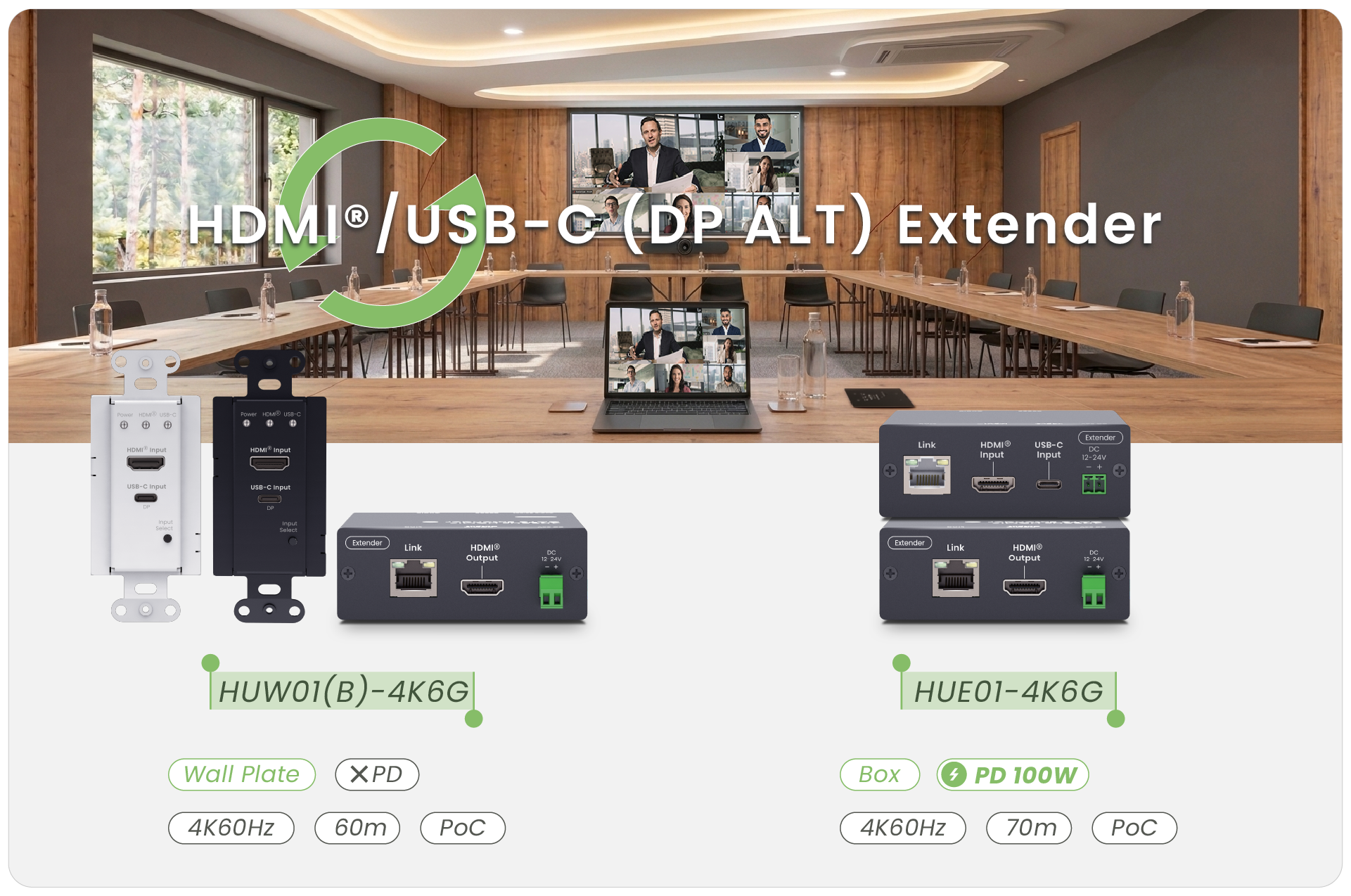
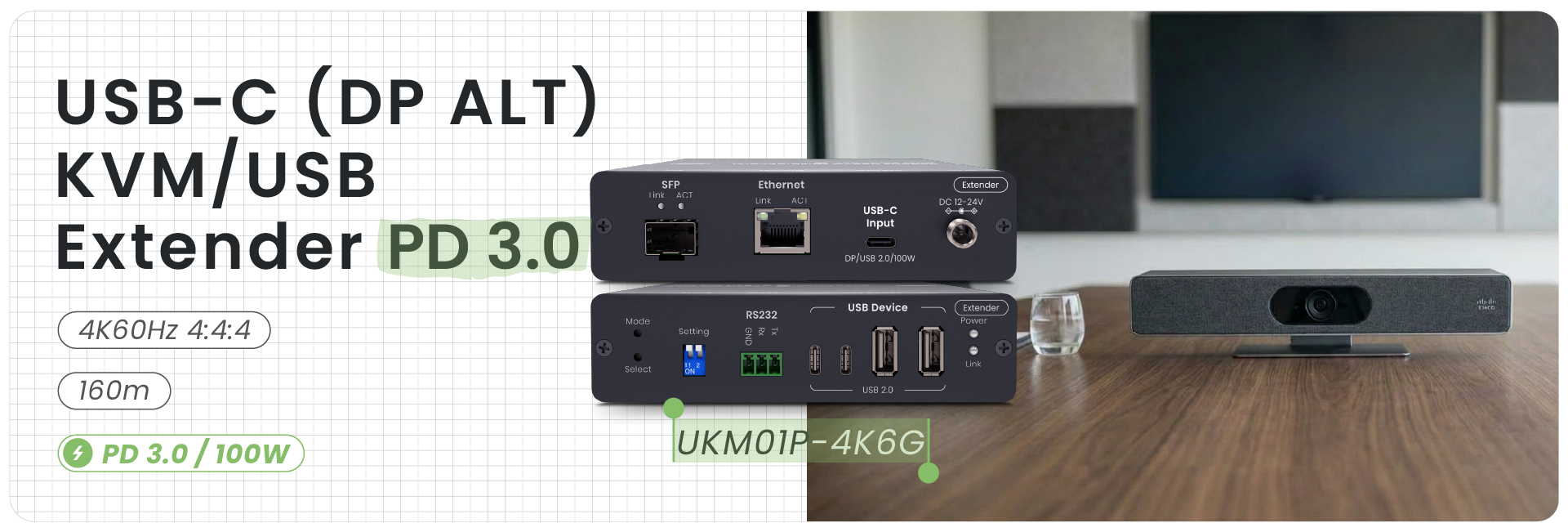
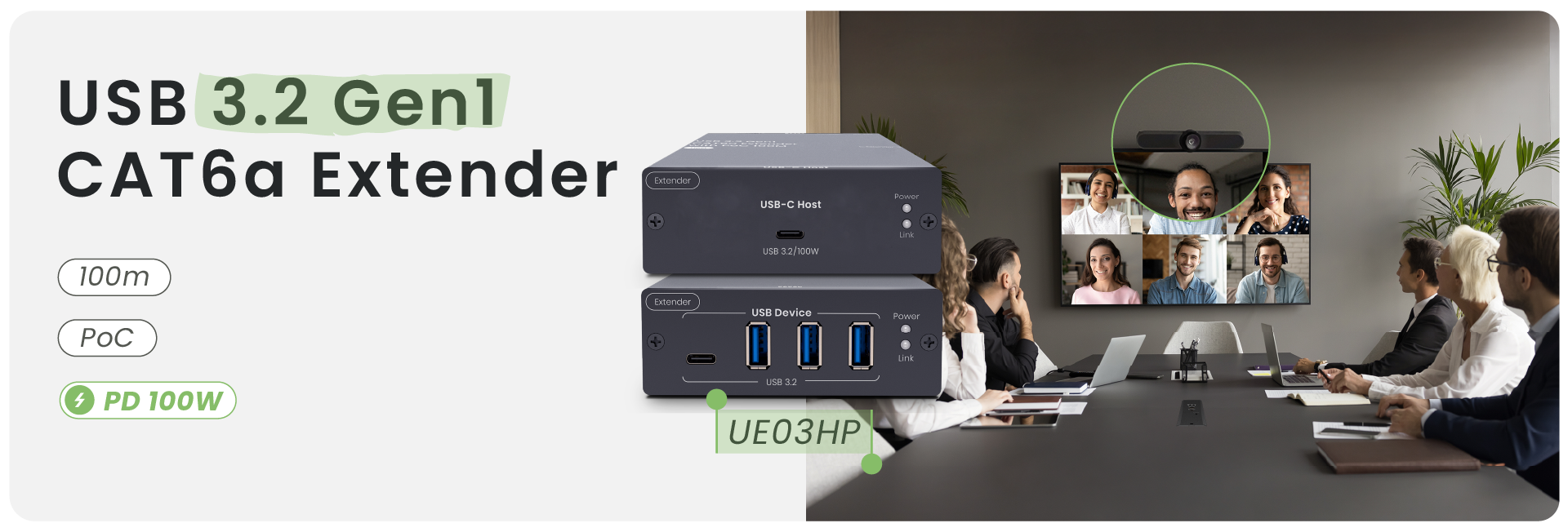
Read more: For system integrators and corporate IT departments, choosing this type of hybrid presentation gear makes it easy to build an intuitive, stable, and incredibly low-maintenance meeting space.
USB-C Power Delivery helps BYOD meeting rooms deliver a simpler one-cable experience for modern laptops. When USB-C supports USB-PD, DisplayPort Alt Mode, and USB Data, users can handle video output, laptop charging, and peripheral connection through a single cable, reducing adapters and cable clutter.
However, USB-C PD does not replace every interface. BYOD rooms still need to support HDMI, DisplayPort, VGA, or other traditional sources for broader device compatibility. Since HDMI only carries video and audio, HDMI laptops still require separate power through a factory adapter, desktop AC outlet, or dedicated charging solution.
A complete BYOD design should treat video input and laptop power as separate requirements, balancing USB-C PD convenience with HDMI compatibility.
Copyright © SC&T. All rights reserved. No part of this website may be reproduced or distributed without prior written permission.
A USB device may work normally when connected directly to a computer but stop working after a USB extender or KVM system is added.
AV requirements in a medical simulation center go beyond recording a training session. In addition to room camera feeds and audio, a session may require recording patient vital signs, ultrasound images, or displays from other equipment. Some content may need to be sent to a control room or observation area for live viewing and later used during debriefing.
PoE, PoE+, and PoE++ all carry network data and DC power over an Ethernet cable. The main difference is the amount of power they can deliver. Basic PoE works for many low-power devices, such as IP phones and some PoE IP cameras. PoE+ provides more power and is commonly used for PTZ cameras and wireless access points. PoE++ uses IEEE 802.3bt Type 3 or Type 4 to power network devices with higher power requirements.

1. All specifications are subject to change without notice.
2. Brand and product names mentioned are trademarks of their respective companies.
3. The terms HDMI, HDMI High-Definition Multimedia Interface, HDMI Trade dress and the HDMI Logos are trademarks or registered trademarks of HDMI Licensing Administrator, Inc.


